
How to run magtyne cadence.
Screen by screen: booking pages, availability, payments, team, workflows, the inbox, tyne & mag, the AI receptionists in chat and voice, and your plan. Most of it takes minutes.
Getting started
From sign-up to a live booking link in a few minutes.
- 1Sign up to start a 14-day free trial of the AI Front Desk plan. No card is asked; when it ends, the workspace moves to Free with everything you set up intact.
- 2The overview shows your path: set your weekly hours and time zone, create your first cadence type (a service people can book), and copy your booking link. Each step is a button.
- 3The tour in the bottom left points out where everything lives; skip it and take it later from the same button.
- 4Share your link. Anyone can book in under a minute on a phone, with no account.
Create takes you anywhere: a cadence type, a booking page, a workflow, a contact, or an instant meeting.
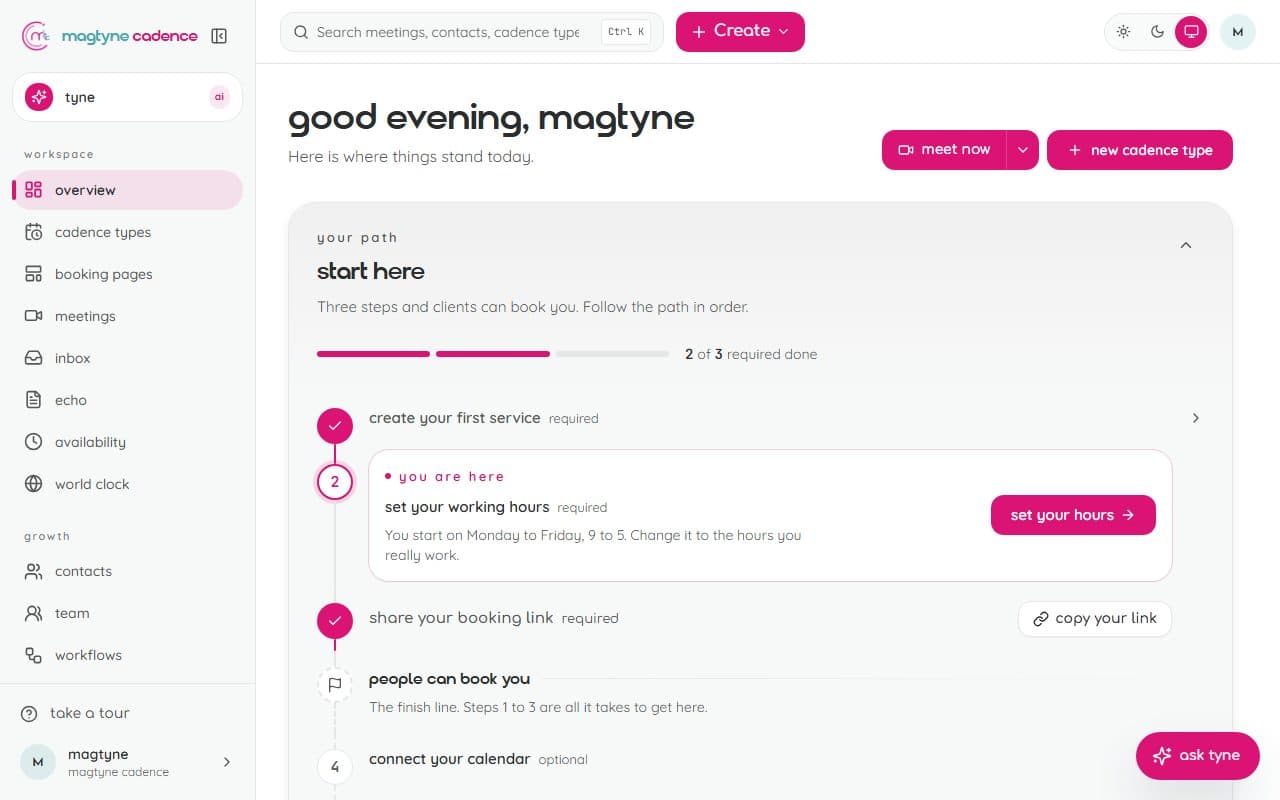
Cadence types
The meetings people can book, each with its own page.
- 1Create one-on-one, group, collective, or round-robin cadence types, or start from a template (a free quote, a repair visit, a tune-up, an intro call).
- 2Set one or more durations, buffers before and after, minimum notice, and how far ahead people can book.
- 3Pick a location: Google Meet, Zoom, Teams, phone, in person with travel-time estimates, or a magtyne video room.
- 4Set a price: free, full payment, or a deposit now with the balance at the meeting.
- 5Pause a type to stop bookings without losing it. Single-use links and meeting polls live in the same place.
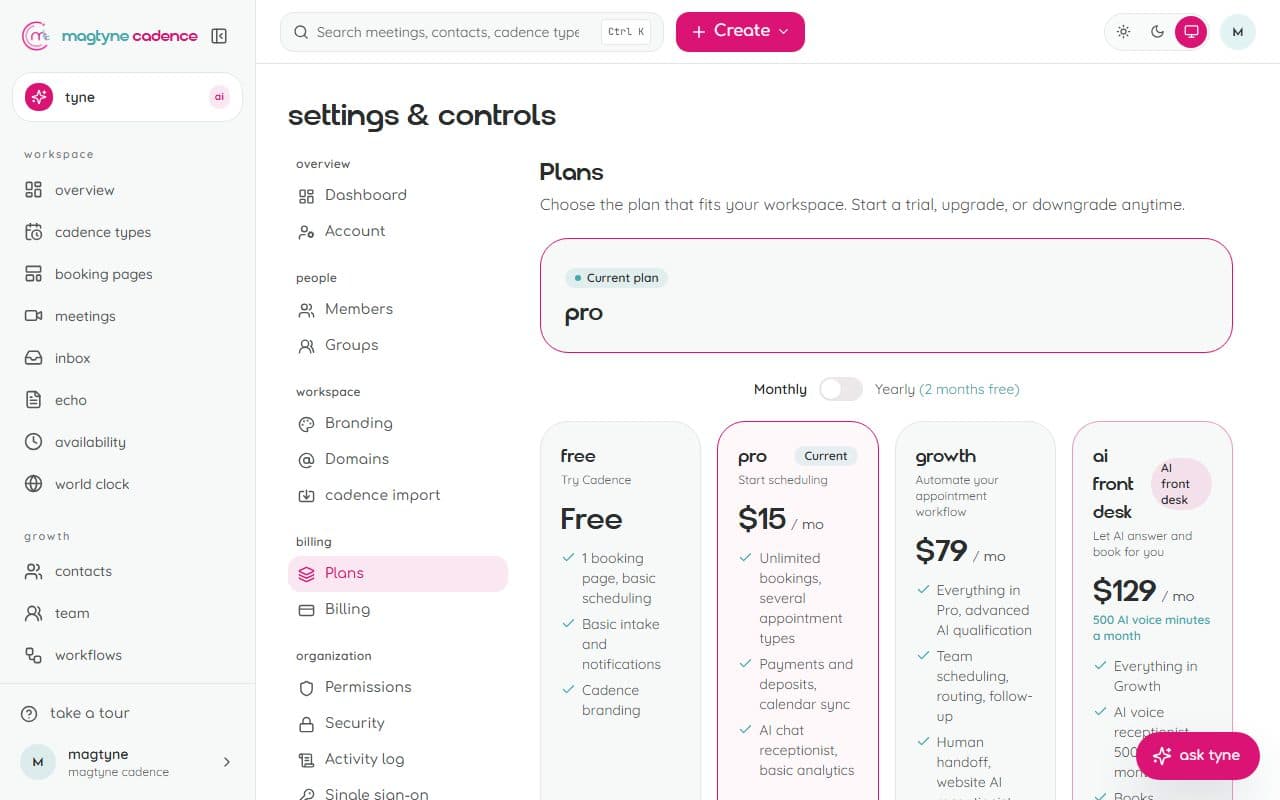
Your plan sets how many booking pages are live at once: one on Free, five on Pro, ten on Growth and AI Front Desk, twenty-five on Business.
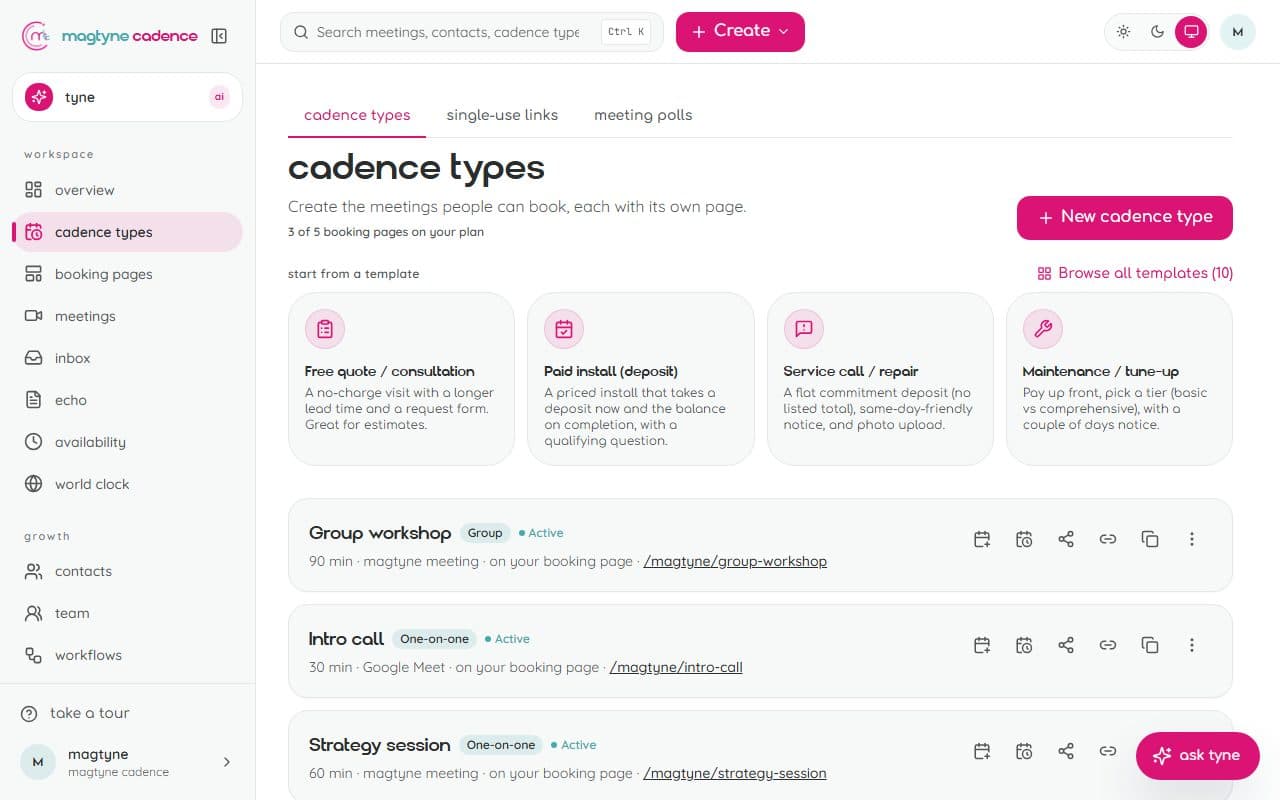
Availability
When you can be booked, and when you cannot.
- 1Set weekly hours per weekday and your time zone. Clients always see times in their own.
- 2Add date overrides for holidays, a short day, or an extra day.
- 3Connect your Google or Microsoft calendar under Integrations: busy times are blocked and new bookings sync back.
- 4Give a cadence type its own hours when it differs from the workspace schedule.
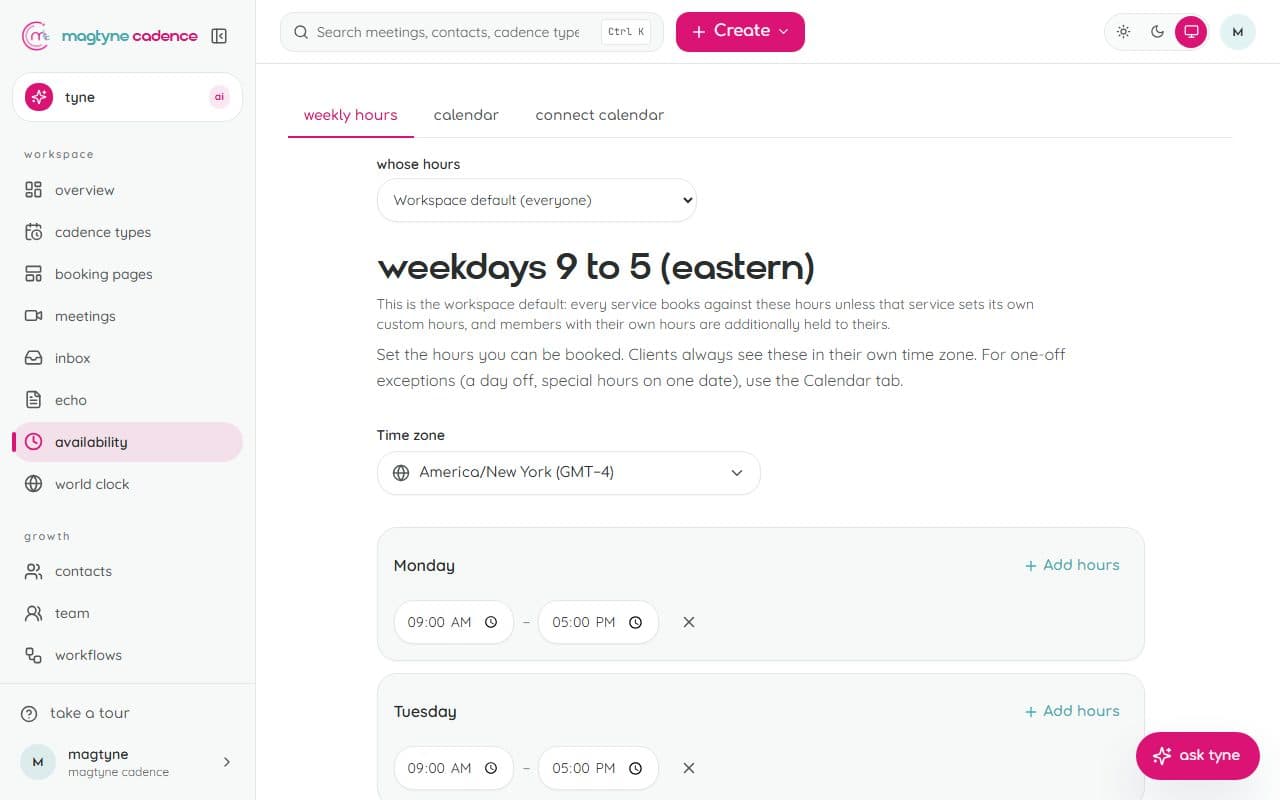
Booking pages and intake
What each visitor sees, and what you ask them.
- 1Edit the headline, cover image (drag and drop), accent color, FAQ, and testimonials per cadence type.
- 2Build an intake form with text, choice, date, file-upload, and conditional fields that appear based on earlier answers.
- 3Group long forms into steps; required fields are checked before a booking can confirm.
- 4Every answer is saved on the booking and shown on the meeting and in the contact record.
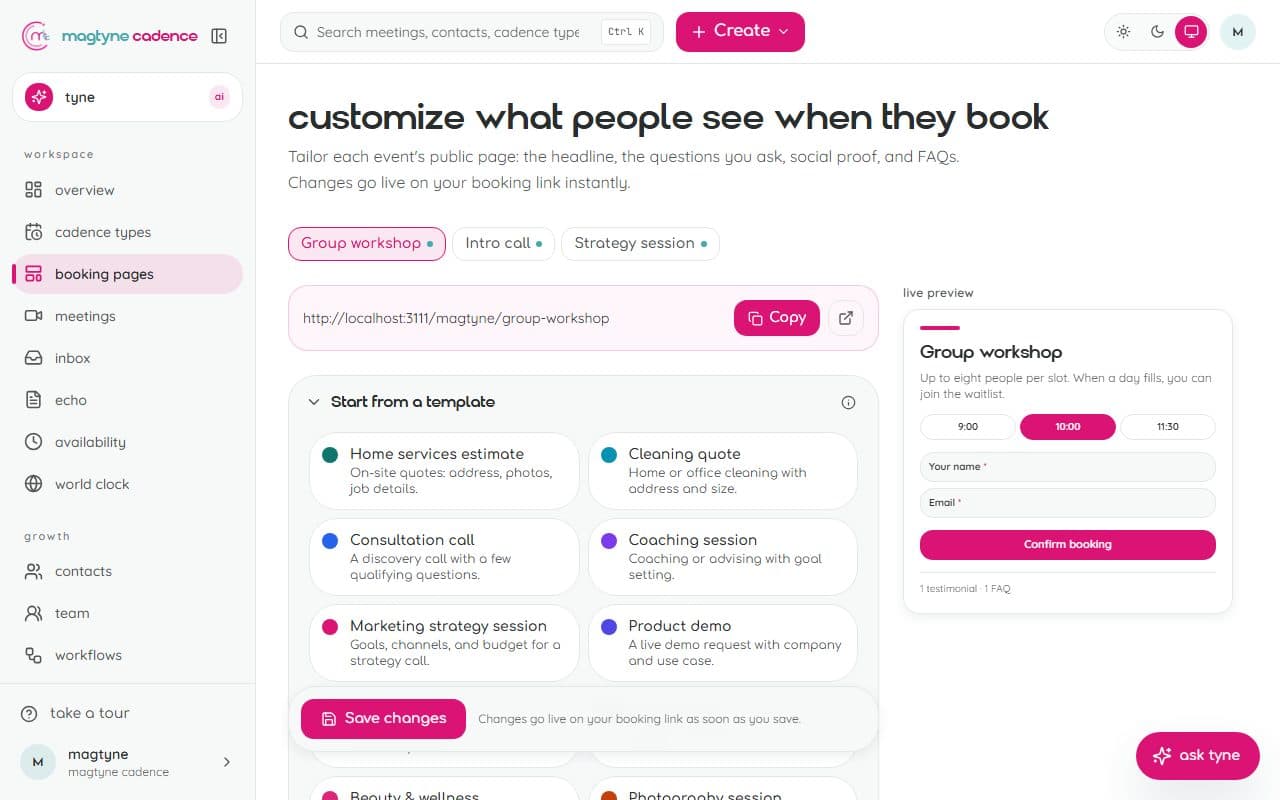
What clients see
The booking flow, on your brand, in under a minute.
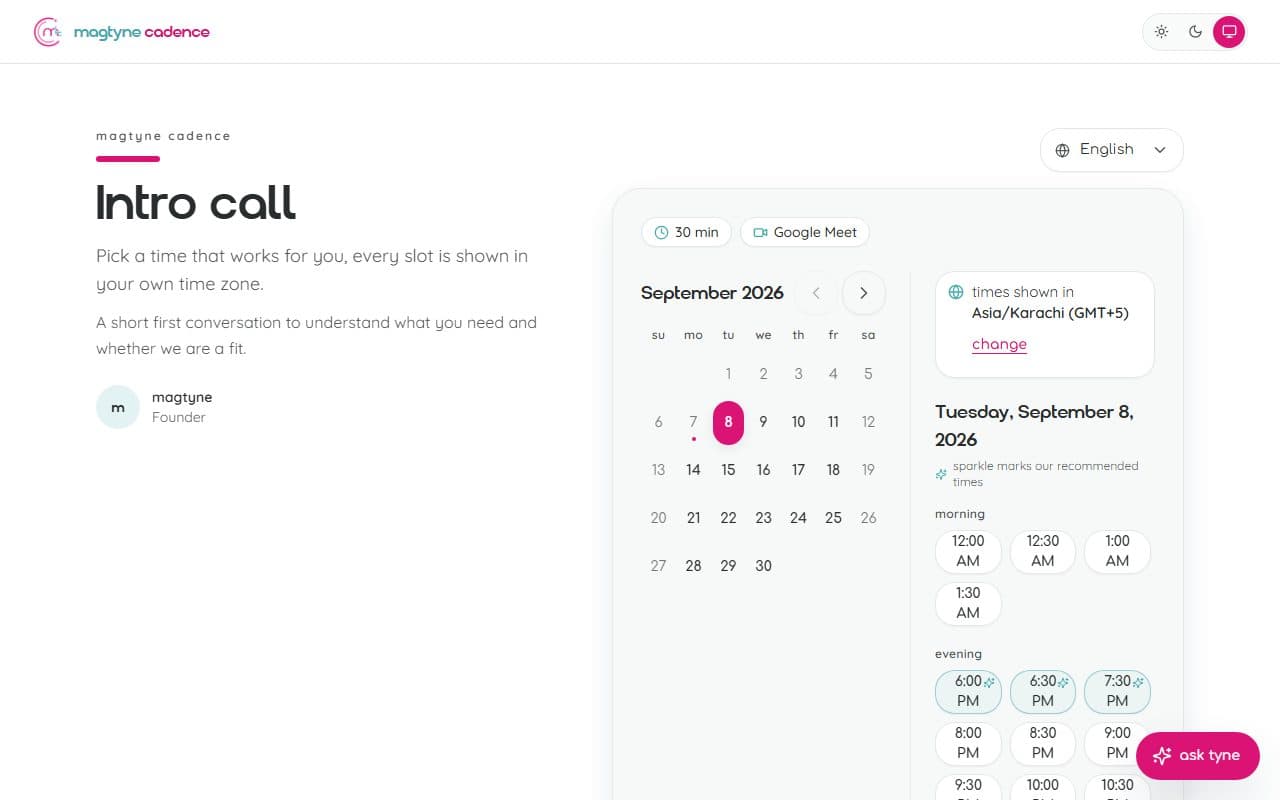
- 1Your booking page lists your services; the client picks one, then a day, then a time.
- 2Times are shown in the client's time zone, only the ones that are really open.
- 3The intake form, payment (when the service has a price), and confirmation follow on the same page.
- 4The confirmation email carries a calendar file and links to reschedule or cancel within your rules.
The same page carries the ask-tyne button, so a client who is unsure can ask the receptionist instead of guessing.
Payments
Charge for your time on your own Stripe, Square, or PayPal.
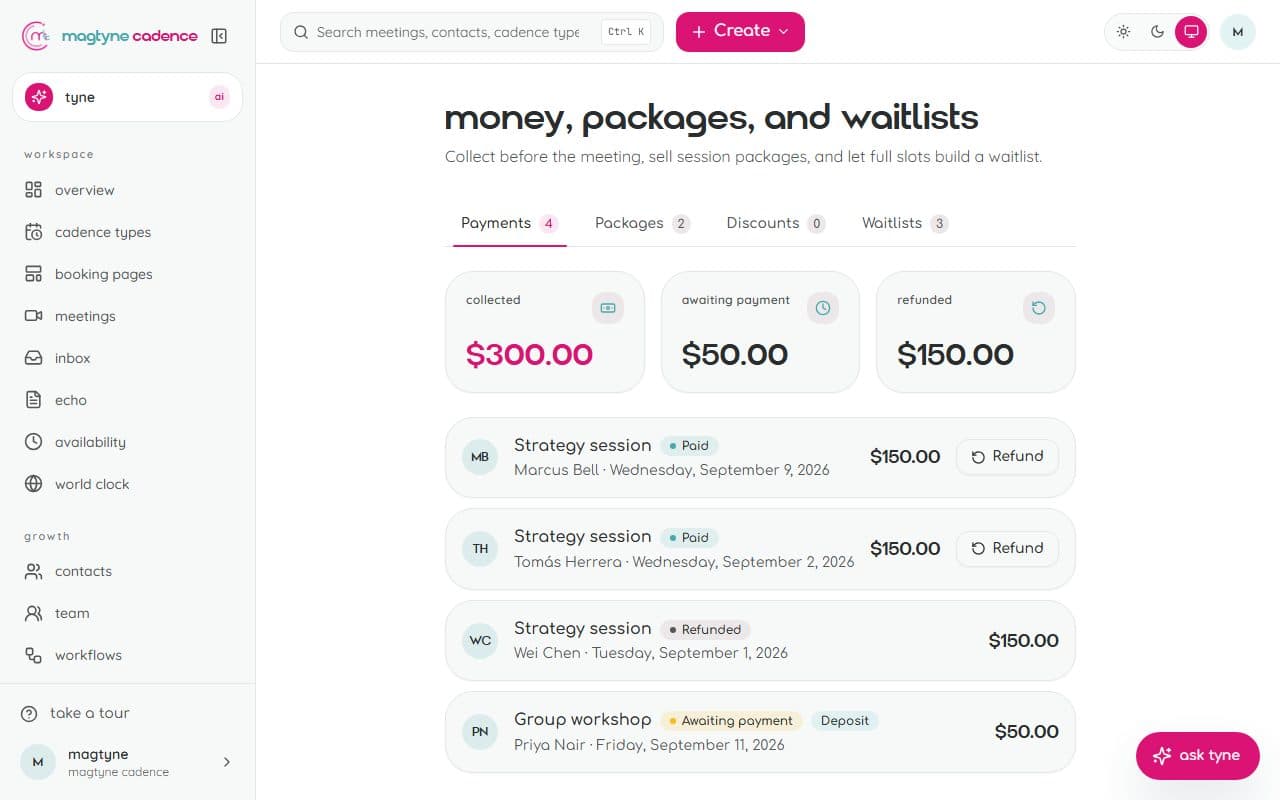
- 1Connect Stripe, Square, or PayPal under Integrations. Money goes to you; there is no platform fee on your bookings.
- 2Set a price per service: full payment, or a deposit now with the balance settled later.
- 3Paid bookings stay pending until payment clears, which cuts no-shows.
- 4Refunds, receipts, invoices, session packages, discount codes, tips, and no-show fees are all here.
Payments start on the Pro plan.
Contacts
Every client, with their history in one place.
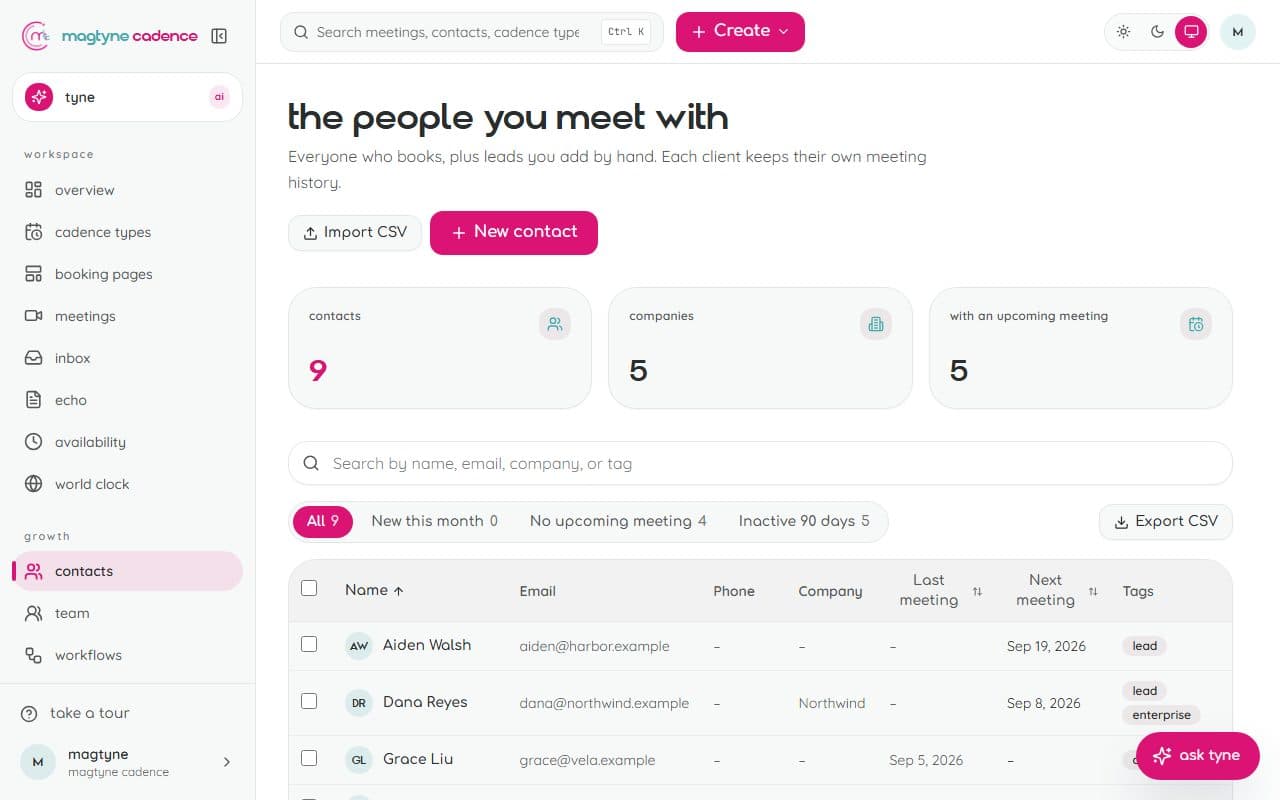
- 1Every booking creates or updates a contact; import the rest from a CSV.
- 2Open a contact to see their appointments, payments, notes, tags, shared documents, and the conversations they had with the receptionist.
- 3Leads the AI receptionist captures land here, tagged, with what it learned in the notes.
Inbox
Every conversation, whichever door it came through.
- 1Chat from the booking page, the website widget, WhatsApp, the client portal, and voice calls all land here.
- 2A conversation the receptionist could not finish is marked for a person; reply as yourself and the client sees it where they wrote.
- 3Voice calls arrive as transcripts with a one-line summary of what happened.
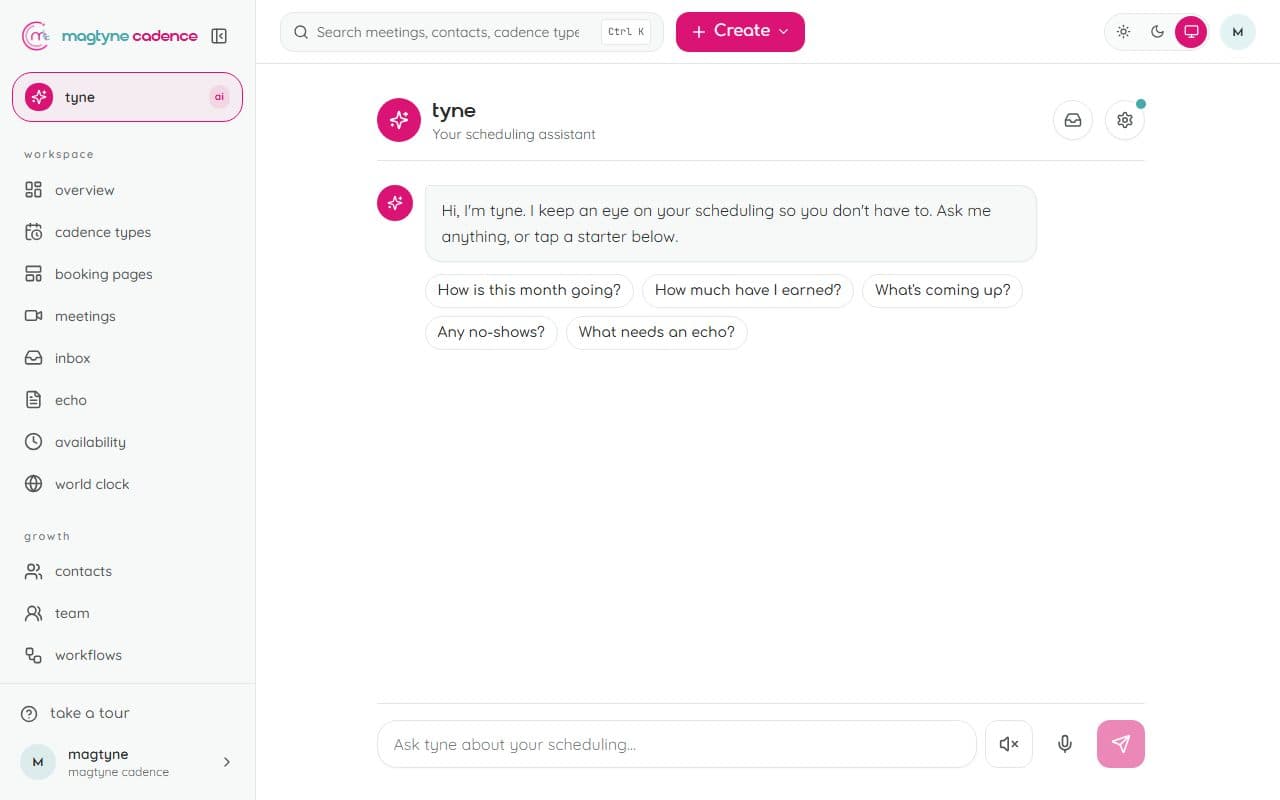
tyne, your assistant
Ask about your scheduling, or have it do the work.
- 1tyne answers questions about your day, your bookings, and your numbers from your own data.
- 2Describe a workflow or a booking page and tyne & mag build it for you to review.
- 3Pick who your clients meet: tyne (warm and concise) or mag (bright and friendly). Same assistant, two voices.
- 4Bring your own AI key under tyne & mag settings if you prefer; the platform key has a daily allowance per plan.
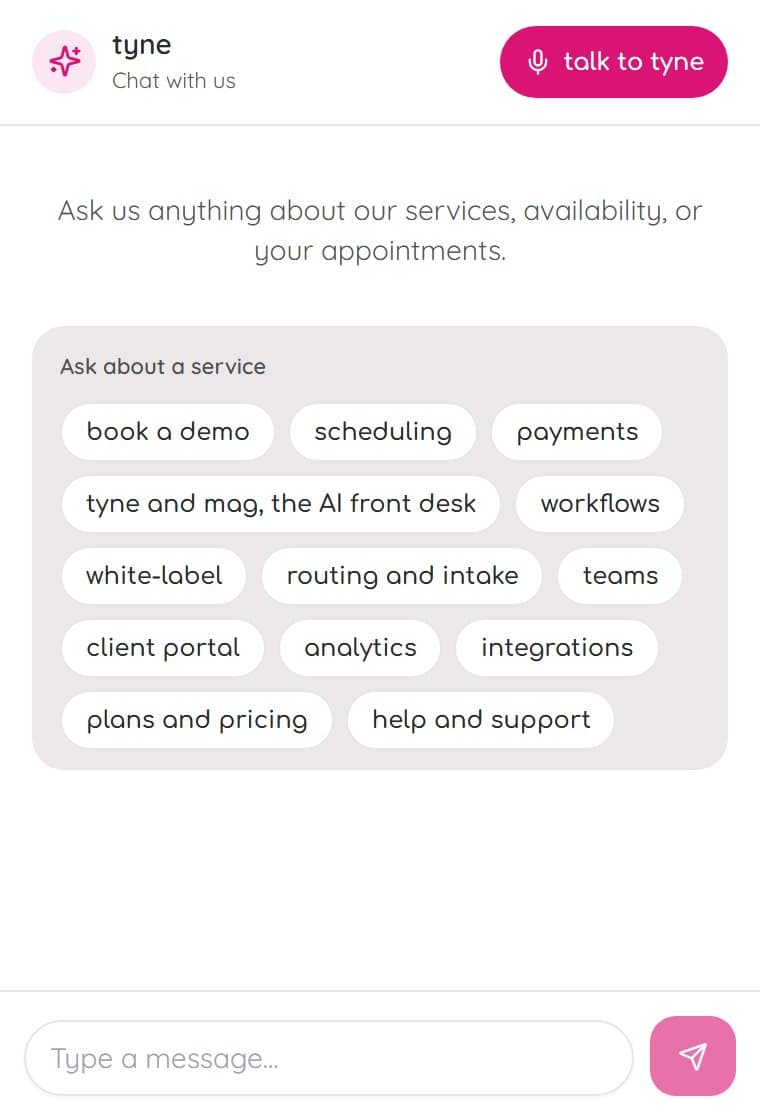
The AI receptionist: chat and voice
A front desk that answers, qualifies, checks your real availability, and books.
- 1Open Receptionist in the sidebar. Setup walks you from services and hours to going live; each step ticks itself off as you go.
- 2Chat is on your booking page from Pro, and on your website and WhatsApp from Growth. Paste one line of code from the Settings tab to put the widget on any site; on WhatsApp the receptionist answers replies to your confirmations.
- 3Voice is part of the AI Front Desk plan and above: the same widget grows a call button, and the receptionist talks with the visitor, checks live availability, books, and can move or cancel the caller's own appointment once it has checked who they are.
- 4It answers only from what it knows: your services, hours, and the Knowledge tab, where you keep the questions clients ask, your policies, plain facts, and pages to share. Outside them it says so and takes a message.
- 5Add up to six qualifying questions. The desk asks them one at a time when someone shows interest, and the answers land on the contact with a hot, warm, or cold tag.
- 6Test it in the Playground: talk to it as a client would and see which step answered and what facts it read. Nothing there reaches your inbox.
- 7Calls and chats shows what every conversation came to: booked, changed, handed to the team, by hour and weekday and service, with this month's minutes and the overage switch.
Voice minutes are counted in seconds on our side and shown as minutes. Past the allowance the receptionist takes messages, unless you switch overage on under Calls and chats.
Workflows and reminders
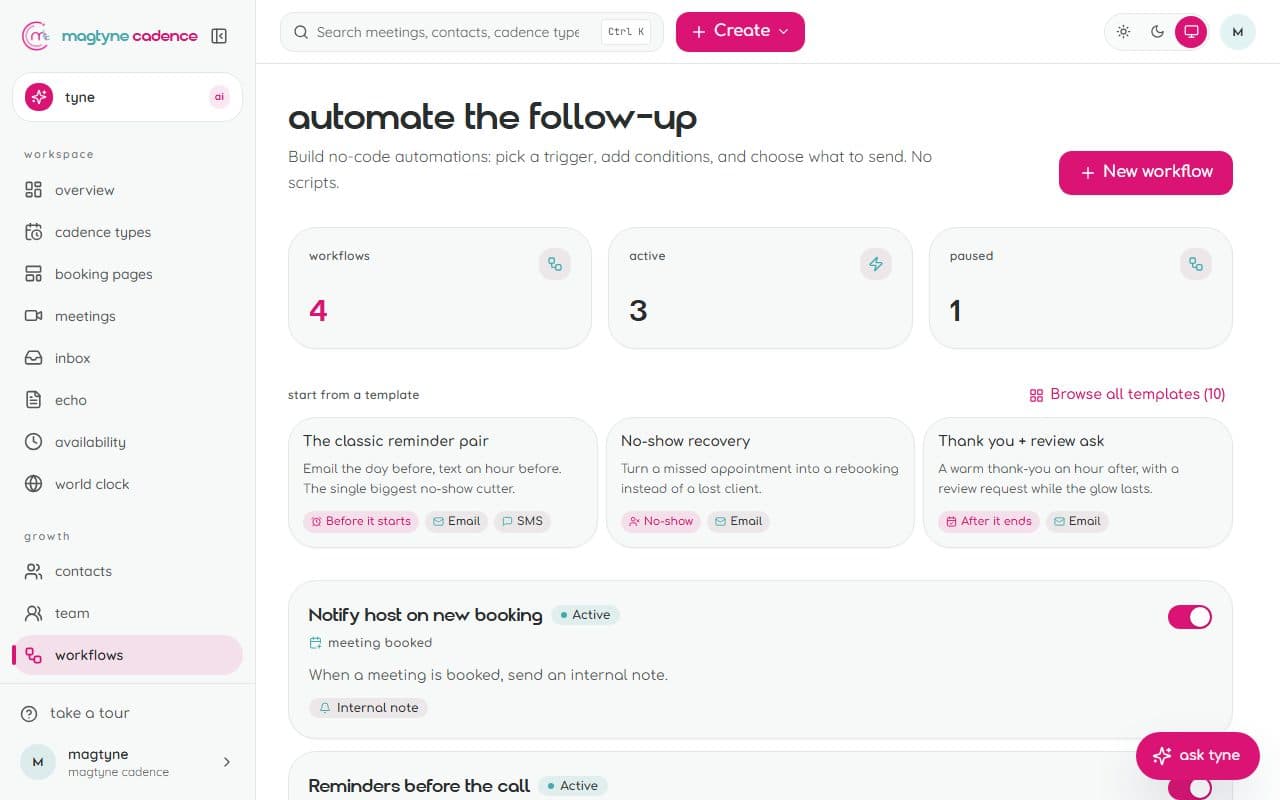
Automate the busywork around every meeting.
- 1Build a workflow from a trigger (booked, before, after, cancelled, no-show), optional conditions, and one or more actions.
- 2Actions send email, SMS, or WhatsApp, at once or offset before or after the meeting.
- 3Pick a purpose: reminder, post-meeting survey, review request, or rebooking nudge.
- 4Every run is logged with its status, so you can see what fired and to whom.
Free includes two workflows; every paid plan has no limit.
Routing
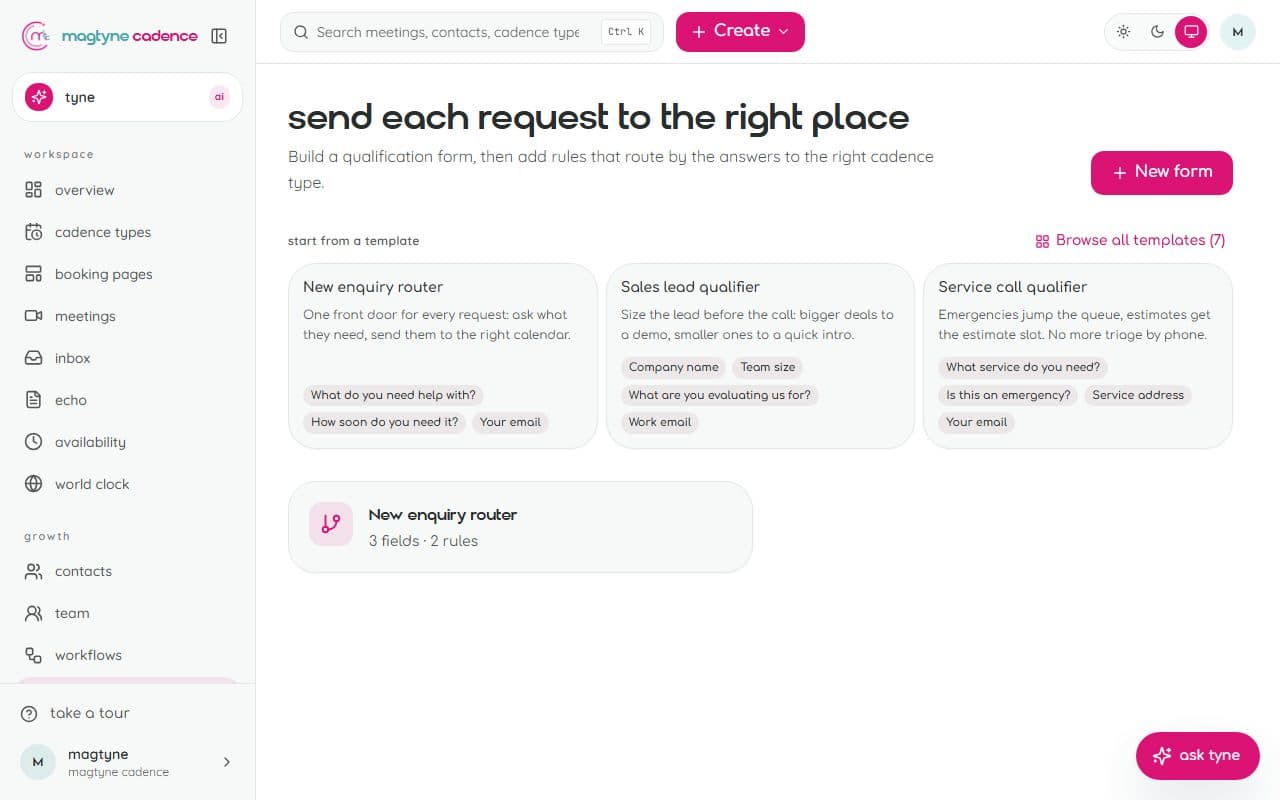
Send every request to the right person or service.
- 1Build a routing form with the questions that decide where a request goes.
- 2Add rules: an answer, a location, or a service picks the cadence type or the teammate.
- 3Round robin and collective cadence types share the load across a team.
Team and roles
Run a whole team from one workspace.
- 1Invite members by name, email, and role. Roles: owner (everything), admin (members, billing, integrations), member (their own scheduling), viewer (read-only).
- 2Groups share cadence types and route bookings across their members.
- 3Your plan sets the seats: 1 on Free, 2 on Pro, 5 on Growth and AI Front Desk, 15 on Business, and 50 on Agency. Enterprise seats are set by agreement.
- 4Every change is recorded in the activity log.

Meetings and echo
Run the meeting and never write it up again.
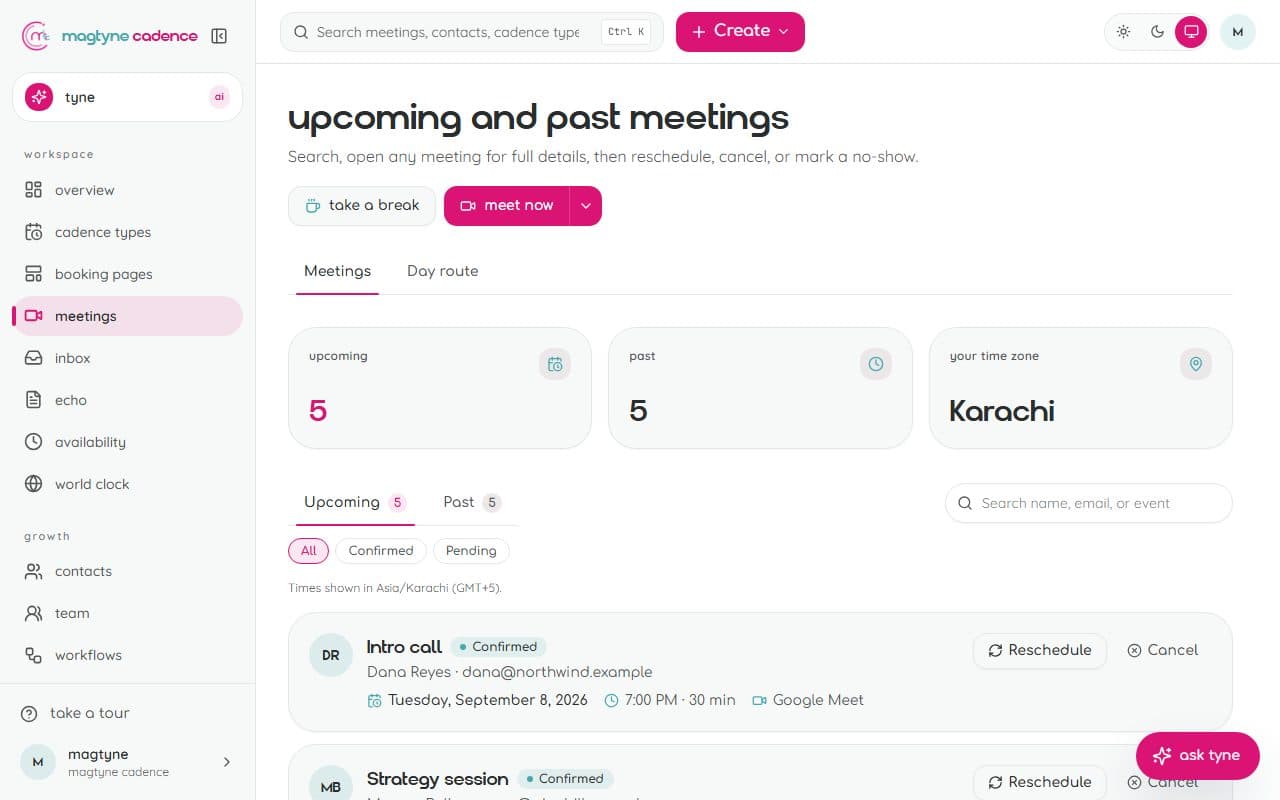
- 1Every booking is a meeting with its join link, the client's answers, and a place for notes.
- 2Record a magtyne video meeting for a live transcript (Chrome or Edge), then echo writes the headline, summary, and action items.
- 3Edit the echo, share it with the client, or keep it internal. Turn the notetaker off per service if you prefer.
Integrations
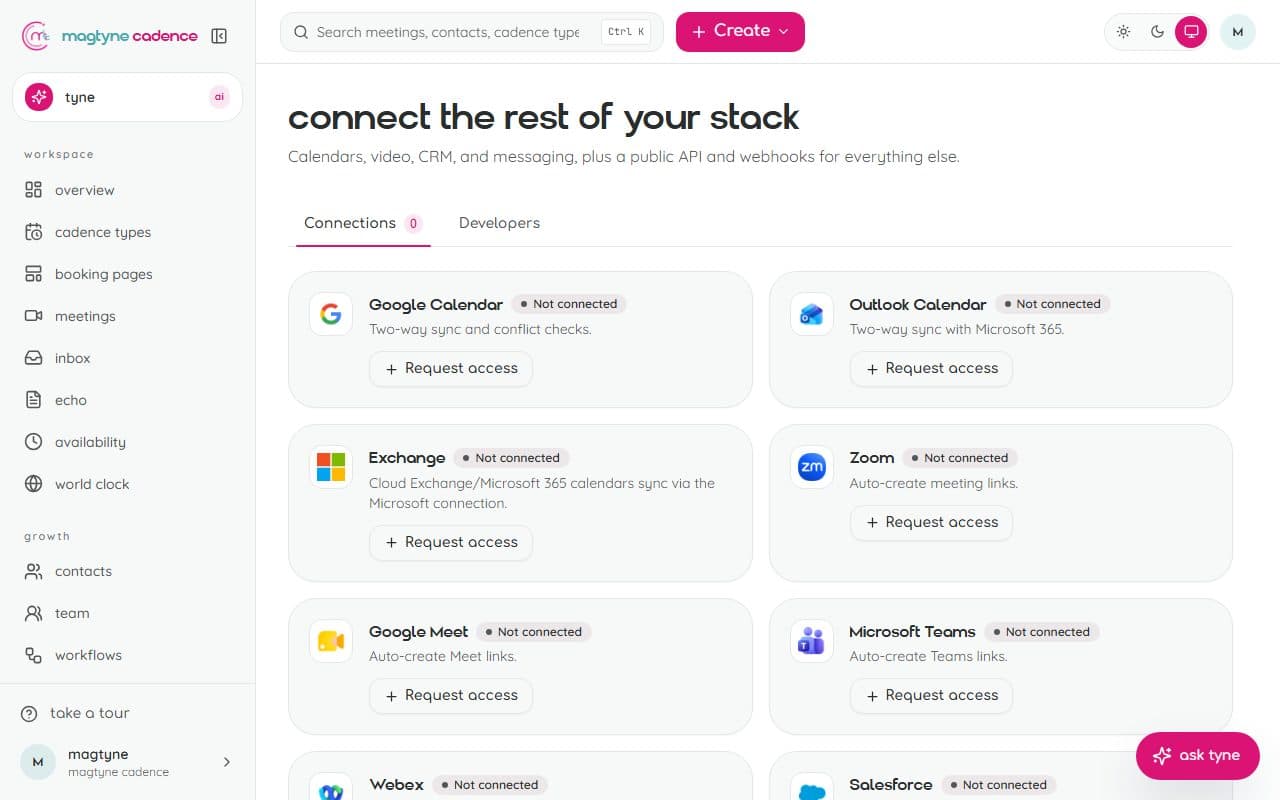
Connect the tools you already run on.
- 1Google and Microsoft calendars sync both ways on every plan (one calendar on Free, two on Pro, as many as you need from Growth up). Zoom, Google Meet, and Teams make the links.
- 2Stripe, Square, and PayPal take payments. WhatsApp carries confirmations and chat once approved.
- 3Slack and HubSpot receive bookings and leads. API keys, webhooks, and the MCP server are under Developer.
Branding
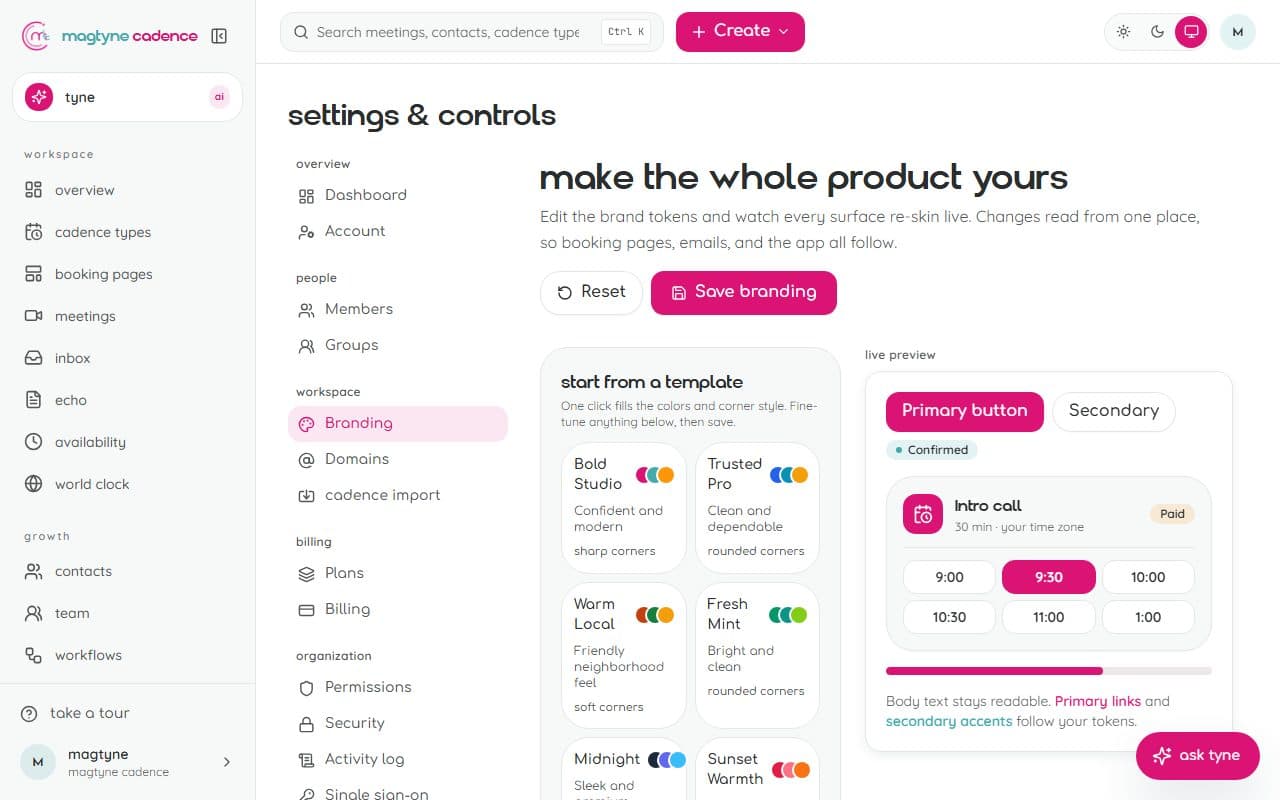
Your colors, your logo, your domain.
- 1Set your colors, logo, and accent once; booking pages, emails, the portal, and the app take them.
- 2Use your own booking domain and your own sending address for email.
- 3On Free the pages carry a small magtyne cadence badge; it goes away on every paid plan.
Client portal
A passwordless home for your clients.
- 1Clients open a secure magic-link portal, no password to remember.
- 2They see upcoming and past appointments with join links, their payments, and downloadable invoices.
- 3Share documents and notes from a contact; the client sees only what you mark as shared.
- 4They can reschedule or cancel within your rules, and chat with you.
Analytics
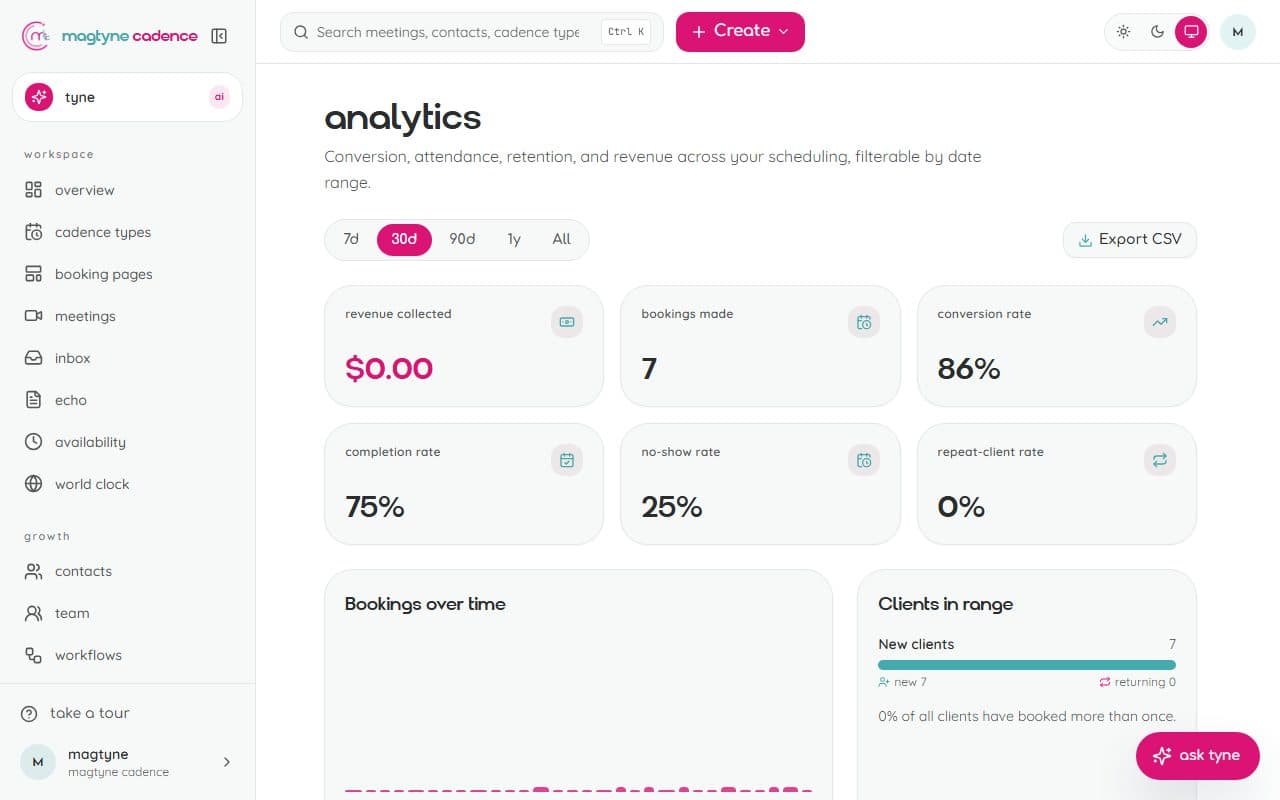
See what scheduling actually earns.
- 1Filter by date range: last 7, 30, 90 days, a year, or all time.
- 2Track conversion, completion, no-show, and repeat-client rates.
- 3See revenue by service and over time, plus your most-booked services. Export any view to CSV.
Plans, minutes, and billing
What your plan includes, and how AI voice usage works.
- 1Change plans anytime from Admin, Plans. Upgrades apply at once and are prorated; downgrades apply at the end of the period.
- 2AI voice minutes come with the AI Front Desk plan (500 a month), Business (1,500), and Agency (5,000). Usage is counted in seconds and shown as minutes in tyne & mag settings.
- 3At 50, 75, 90, and 100 percent of the month's minutes the owners get an email. At 100 percent the receptionist takes messages unless overage is on, which bills extra minutes at the plan's rate.
- 4The optional Professional AI Setup ($199 once) has us configure the receptionist, its knowledge, your workflows, and the voice, then test it and hand it over.
Agencies
Several businesses under one account.
- 1On the Agency plan, Admin gains an Agency section: add a business by name and its owner's email, and a workspace of its own is created with the owner invited.
- 2Each business runs its own booking pages, receptionist, inbox, and branding; the agency sees every business with the month's minutes, calls, and bookings.
- 3Minutes are pooled across the businesses and billed to the agency.
Security and your account
What keeps your data yours.
- 1Two-factor authentication with recovery codes, from Admin, Security.
- 2An audit log of every change, per-workspace data isolation, and encrypted integration tokens.
- 3Export your data anytime. Single sign-on and SCIM are available on request.
Switching from another tool
Bring your business over in minutes.
- 1Open Admin, cadence import, and paste a personal access token from your previous scheduling tool. It is used once and never stored.
- 2Imported services arrive paused so you can review durations, prices, and locations before they go live.
- 3Export your client list as a CSV from the old tool and import it on Contacts; columns match by their header names.
Building an integration?
API keys, webhooks, and event payloads are in the API docs.

most people need four guides, in this order
Set up your first service, connect payments, switch on reminders, make it your brand. Each one takes minutes.